Module 3 of 10
Design without AI slop
A video for this module is coming.
What you'll do
You will choose a look for your app with /shipyard:design. A look is more than colours. It also sets the menu style, the homepage style, how cards and buttons feel, the text size and the spacing, in light and dark. Every way of choosing is free and needs no extra account.
What "AI slop" looks like
Apps built fast by AI tend to share the same tells: purple gradients, emoji in every heading, invented testimonials and user counts, "Powered by AI" badges, boxes that start with "Tip:", and a homepage full of filler like "Feature 1". Visitors notice, even if they cannot say why. Shipyard fights this in two ways: a script that checks the code, and rules a person (or the agent, looking at screenshots) applies by eye. Both are described below.
Four ways to choose
Run:
/shipyard:design
Shipyard asks one question: how do you want to choose the look? It recommends a site you like if you have one, otherwise three directions.
1. A site or app you like
Give it one or two screenshots, or a web address. For screenshots, save them in a folder called design-input inside your app (not in the chat, which keeps the conversation small). That folder is kept out of GitHub, so other sites' screenshots never get published. For an address, Shipyard saves its own screenshots of the site and drafts a look from them, guessing colours, fonts, corner roundness, spacing and general feel. It never saves the site's images, logos or text.
2. A design file from getdesign.md
getdesign.md is a free collection of ready-made DESIGN.md files (a design file is a written description of a style, which an agent can follow). Shipyard can list them, download one you pick, and turn it into a draft look. It gives the draft a neutral style name, never the brand's. The collection is awesome-design-md by VoltAgent, shared under the MIT licence.
3. Three directions for your homepage
Shipyard first writes your app's real homepage words. Then it drafts three genuinely different looks for your app, and the script refuses if two are too alike. It renders real screenshots of your own app in each and opens a page with the three side by side. You click "Use direction B" and paste the sentence back to Shipyard.
4. A ready-made look
Eight looks to pick from, the quickest option. It opens a gallery showing each on a phone and a computer screen, light and dark. You can also ask to see them on your own app, which takes about a minute.
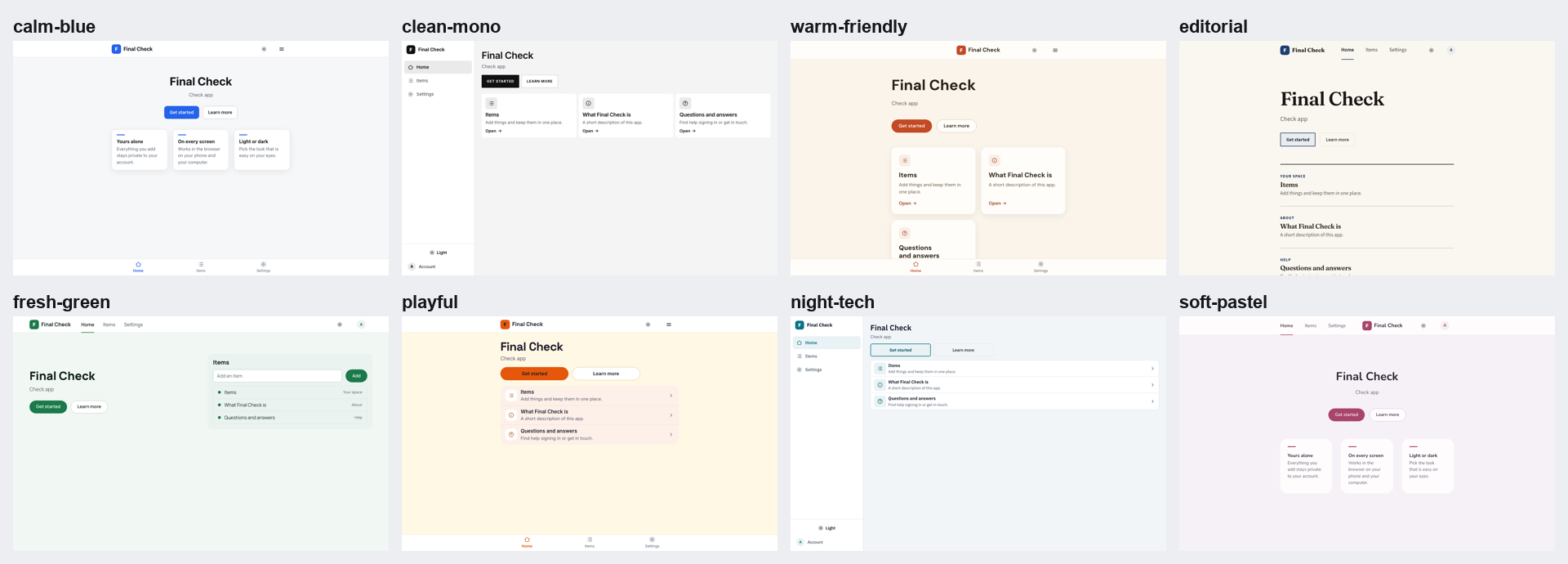
| Look | Feels like | Good for |
|---|---|---|
| Calm and clear | Soft grey-white, one friendly blue. The starter look. | General apps, first projects |
| Clean monochrome | Near-black on white, thin crisp lines | Tools, dashboards, lots of data |
| Warm and friendly | Cream background, terracotta accent, soft corners | Community, lifestyle, food, hobbies |
| Editorial | Paper-white, ink-black text, serif headings | Blogs, writing, news |
| Fresh and healthy | Mint-white pages, deep leaf green | Health, habits, learning, fitness |
| Playful | Sunny cream, bold tangerine, big round shapes | Games, kid-friendly learning, social |
| Night tech | Dark by default, electric cyan, sharp lines | Developer tools, gaming, music |
| Soft pastel | Lilac-grey pages, dusty rose, very round corners | Wellbeing, journaling, mindfulness |
If you cannot decide: Calm and clear for most apps, Clean monochrome for tools, Warm and friendly for anything social. This site uses the Editorial look.
Take the style, not the brand
When you copy from a site, screenshot or design file, Shipyard copies colours, fonts (the nearest free Google font), spacing, corner roundness and general feel. It never copies logos, images, icons, wording, brand names or trademarks. A look inspired by a site is fine. A lookalike of its brand is not.
What the look changes
A look sets the menu style too, so applying one can change the structure of your app, not only the colours. Menu styles in plain words:
- Bottom tabs: tabs along the bottom, like a phone app.
- Sidebar: a menu on the left, good for tools and dashboards.
- Top links: links across the top, good for websites and content.
On phones all three show bottom tabs. To keep your current menu and only change colours and fonts, ask for that. To change only the menu, ask Shipyard to change the layout.
Shipyard writes the look into your app and also into a file called DESIGN.md, the app's written look guide, and makes matching icons. If you like the look, it asks whether to use it for your next apps too.
Optional polish: Impeccable and frontend-design
These are optional and separate from Shipyard. Shipyard offers them after the look is applied and asks before installing anything. Installing changes your Claude Code, and you need to restart it afterwards.
- frontend-design is a free plugin from Anthropic that nudges Claude toward careful, distinctive screens. Good to have while building. If it suggests colours or fonts, your app's look still wins.
- Impeccable is a free third-party design review tool. Use it on one page at a time, after the first real build. It can use a lot of your Claude allowance, so do not run it on the whole app. It also adds hooks that run when files change. Afterwards, run the design check again, because it can add colours or gradients the check will catch.
What the slop check catches
Inside your app, npm run check:design runs the code check, and it runs on every pull request too. Each finding names the file, the line and the fix.
- Colours typed directly into components, instead of the look's colour variables.
- Gradient backgrounds.
- Long dashes (em dashes) in text people read.
- Emoji in screens.
- Placeholder text like "Your tagline here" and "Feature 1", and Latin filler text.
- Fake proof: "10,000+ users", five stars, "Trusted by", "as seen on".
- "Powered by AI" badges.
- Pop-up boxes from the browser (
alert,confirm). - Form inputs smaller than 16px, which makes iPhones zoom in.
- Text that starts with "Tip:".
A real exception needs a comment in the code explaining why, so nothing slips through by accident.
A script cannot judge everything. Shipyard also looks at the phone screenshots, light and dark, and fixes what looks off: one clear main heading per page, one accent colour, designed empty and loading and error screens, short labels with no explanations inside menus, no subtitle repeating the title, and real numbers and names only.
Done when
- A look is applied and Shipyard told you what it changed.
- The design check passes.
- You looked at the light and dark phone screenshots and the homepage says real words about your app.
If something goes wrong
- Two of the three directions look alike. Shipyard refuses and redraws them with a different menu, homepage or card style, not only different colours.
- The design check lists colours in components. Ask Shipyard to switch them to the look's colour variables. Do not edit the colour blocks in
globals.cssby hand; they are rewritten by the design step. - Shipyard says the colour markers are missing. The app was not made from the Shipyard template. Hand-editing will not work. Ask Shipyard to explain your options.
- The gallery shows filler homepage text. Ask Shipyard to write your real homepage words first, then view the looks again.